
Strapi Admin Panel Customization: Ideas and Use Cases
Intro
Strapi is a powerful CMS, and its Admin Panel can be extended and customized to add features that are specific to your project and your users.
In this blog, we’ll share some useful ideas and real-world use cases for customizing the Strapi Admin Panel.
Here are the customization areas we’ll cover:
- Strapi Homepage customization
- Custom fields
- Custom buttons
- Custom UI components
- Theme and branding
For each area, we’ll look at practical use cases and share examples of customizations we’ve built for our clients and found useful in real projects.
The goal is not to completely replace Strapi’s Admin Panel, but to extend it and make it better suited to the way your team works.
All of the customizations covered in this article can be implemented without patching Strapi itself.
Home page customizations
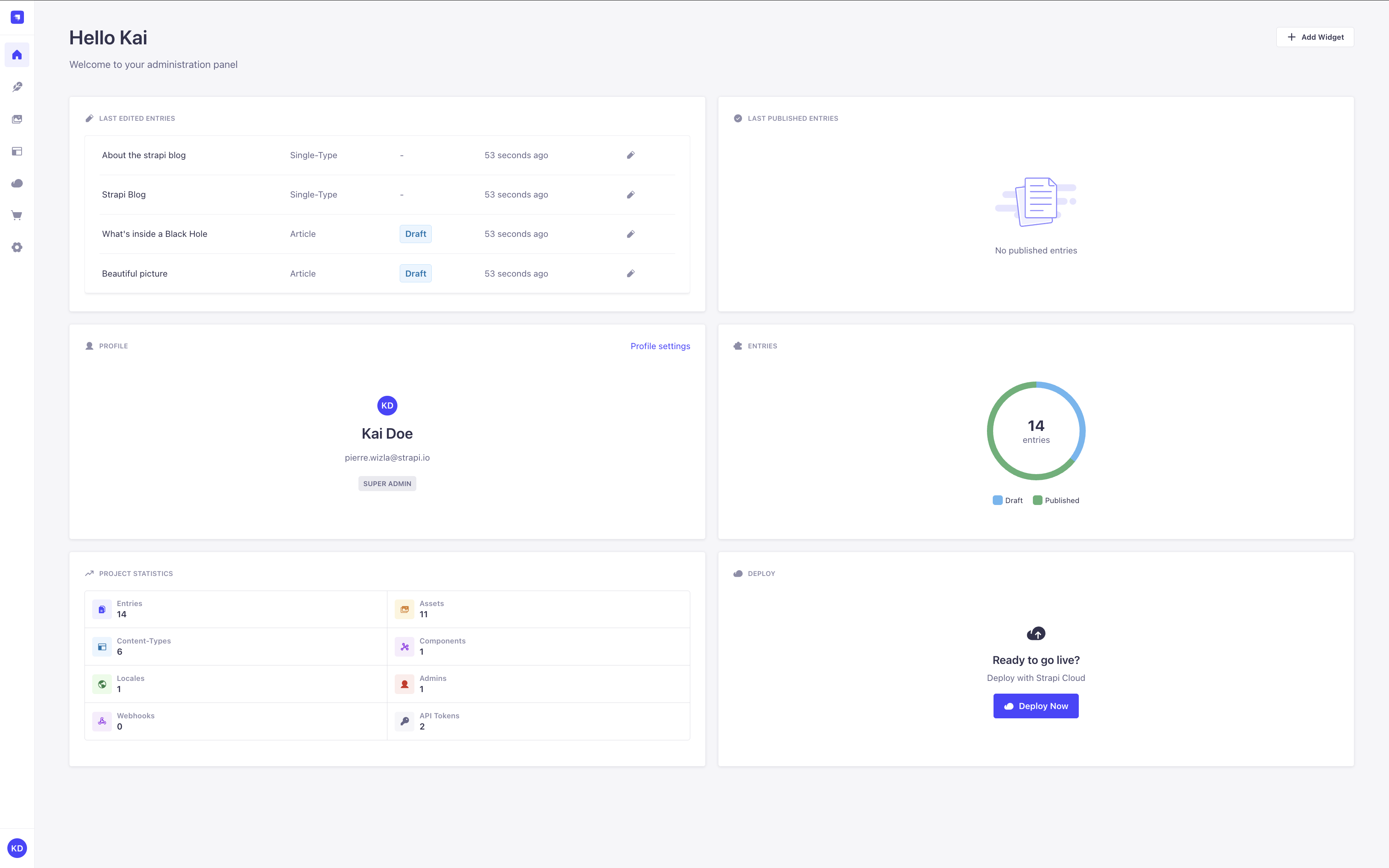
The Homepage is the landing page of the Strapi admin panel. By default, it provides an overview of your content through several widgets. You can customize the Homepage by creating your own widgets and displaying the information that is most useful for your admins.
Use cases:
The Homepage should give admins a quick overview of what's happening in the system and help them get to common tasks without navigating through multiple pages.
Quick overview
Display information that admins need to check frequently, such as:
- Pending support tickets
- Refund requests
- Orders that need attention
- Recently created content
- Content waiting for approval
These widgets can also link directly to the relevant Content Manager page, so the admin can go from the overview to the actual content with one click.
Quick actions
Add buttons for actions that admins perform frequently.
For example:
- Create a new product
- Check system status
- Generate a report
For simple actions, you could even display a small form directly on the Homepage so the admin doesn't need to leave the page.
Charts and graphs
The Homepage can also be used to display custom charts and graphs that give admins a quick understanding of the system.
For example:
- Orders over the last 30 days
- Revenue by month
- Most popular products
- New customers
How:
To add a custom widget, you need to create a custom plugin and register your own widgets
import pluginId from './pluginId';
import MyWidgetIcon from './components/MyWidgetIcon';

export default {
  register(app) {
    // ...
    // Register a widget for the Homepage
    app.widgets.register({
      icon: MyWidgetIcon,
      title: {
        id: `${pluginId}.widget.title`,
        defaultMessage: 'My Widget',
      },
      component: async () => {
        const component = await import('./components/MyWidget');
        return component.default;
      },
      id: 'my-custom-widget',
      pluginId: pluginId,
    });
  },

};
The app.widgets.register API only works with Strapi 5.13 and above. Trying to call the API with older versions of Strapi will crash the admin panel.
for more details: https://docs.strapi.io/cms/admin-panel-customization/homepage
Custom buttons
Strapi allows you to extend the Edit View by injecting your own components into different areas of the page. This makes it possible to add custom action buttons next to the existing Strapi actions.
This is useful when an action is specific to your business logic and doesn't fit into Strapi's standard content management operations.
Use cases
Add actions specific to a content type
For example, an Order content type might have actions that are specific to the order workflow.
Instead of requiring the admin to navigate to another page or manually perform several steps, we can add a Refund button directly to the Order page.
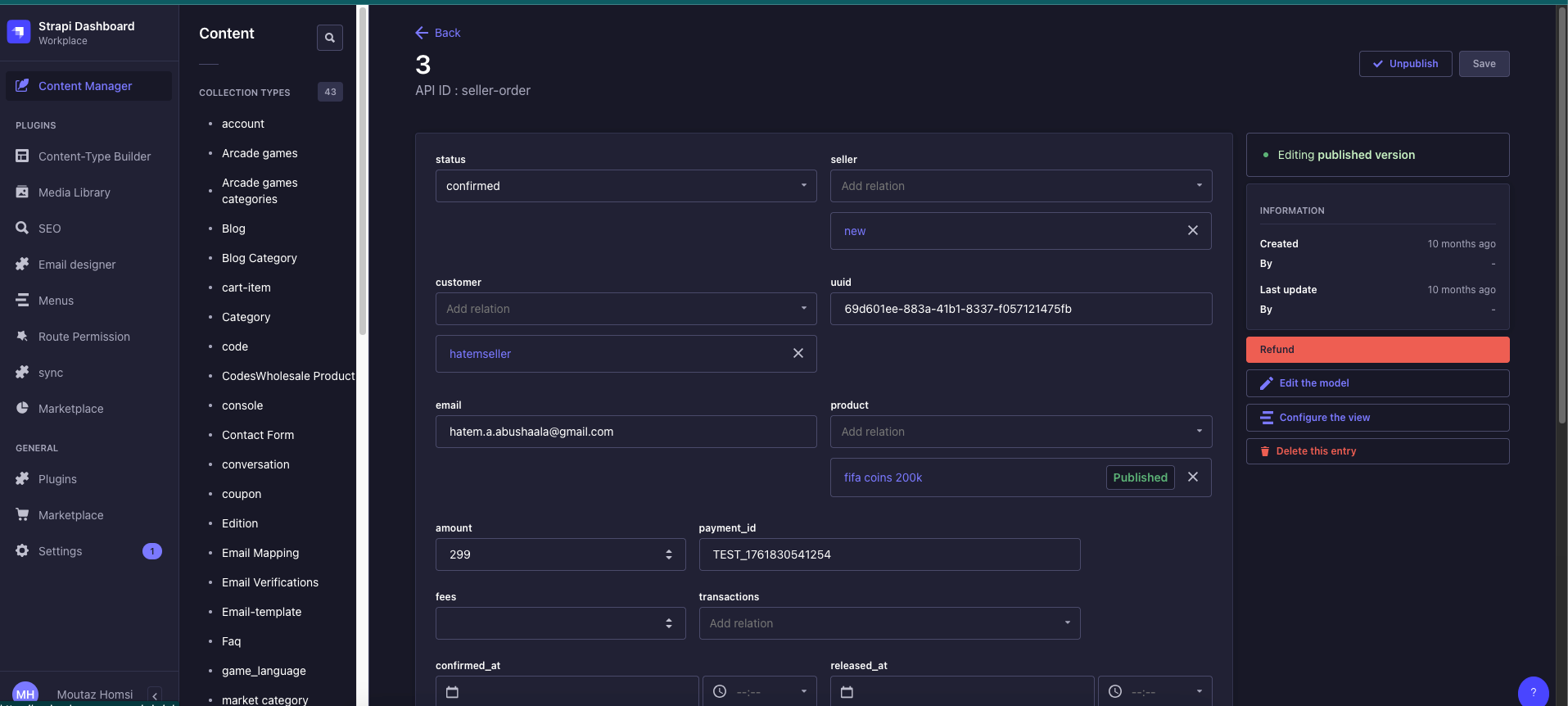
Clicking the button can trigger the refund process and show the result to the admin without leaving the Order page.
Similarly, for an Order Item, we could add a Fulfill button that triggers the fulfillment process for that specific item.
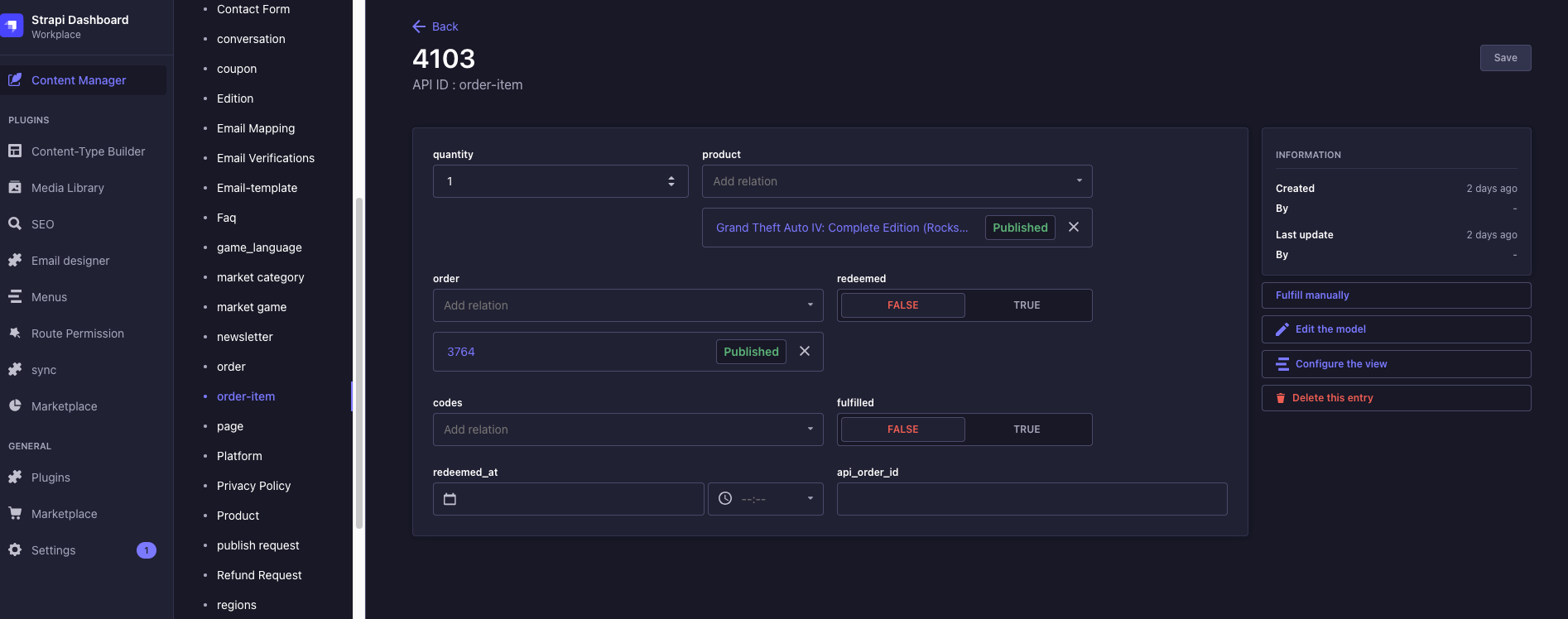
These buttons can call your own backend APIs, trigger workflows, or integrate with external services.
Other ideas
- Preview on the website — open the current content directly on the frontend.
- Generate content — use AI to generate descriptions, summaries, SEO metadata, or other content.
- Auto-translate — translate the current content into another language with a single click.
- Sync with external systems — synchronize the content with an ERP, e-commerce platform, marketplace, or another service.
- Open in external system — jump directly to the corresponding record in another system.
- Trigger a workflow — approve, publish, fulfill, refund, or perform another business action directly from the content page.
How
from your plugin registertion code
app.injectContentManagerComponent("editView", "right-links", {
        name: "actions",
        Component: props => {
          return <Action {...props} />
        }
})
and Action component could be structured like this, you just need to add condition and component to handle each content type.
export default function Action({ slug }) {
   if (slug === "api::product.product") return <ProductActions slug={slug} />
   if (slug === "api::refund-request.refund-request") return <RefundRequestActions slug={slug} />
   if (slug === "api::seller-order.seller-order") return <SellerOrderActions slug={slug} />
   if (slug === "api::order-item.order-item") return <OrderItemActions slug={slug} />
   else return
}
Custom fields
Custom fields extend Strapi’s capabilities by allowing you to add new types of fields to content-types and components. Once created or added to Strapi through plugins, custom fields can be used in the Content-Type Builder and Content Manager just like Strapi’s built-in fields.
Custom fields are useful when a standard input or relation field doesn't provide the right experience for your use case. They allow you to build a more specialized UI around the data that editors need to enter or select.
Use cases
Search and select from a content library
For example, we built a custom field that allows editors to search for FAQs from a centralized FAQ library.
Instead of using a standard relation field and browsing through a long list of FAQs, the custom field provides a dedicated search interface with filters such as tags and other FAQ attributes.
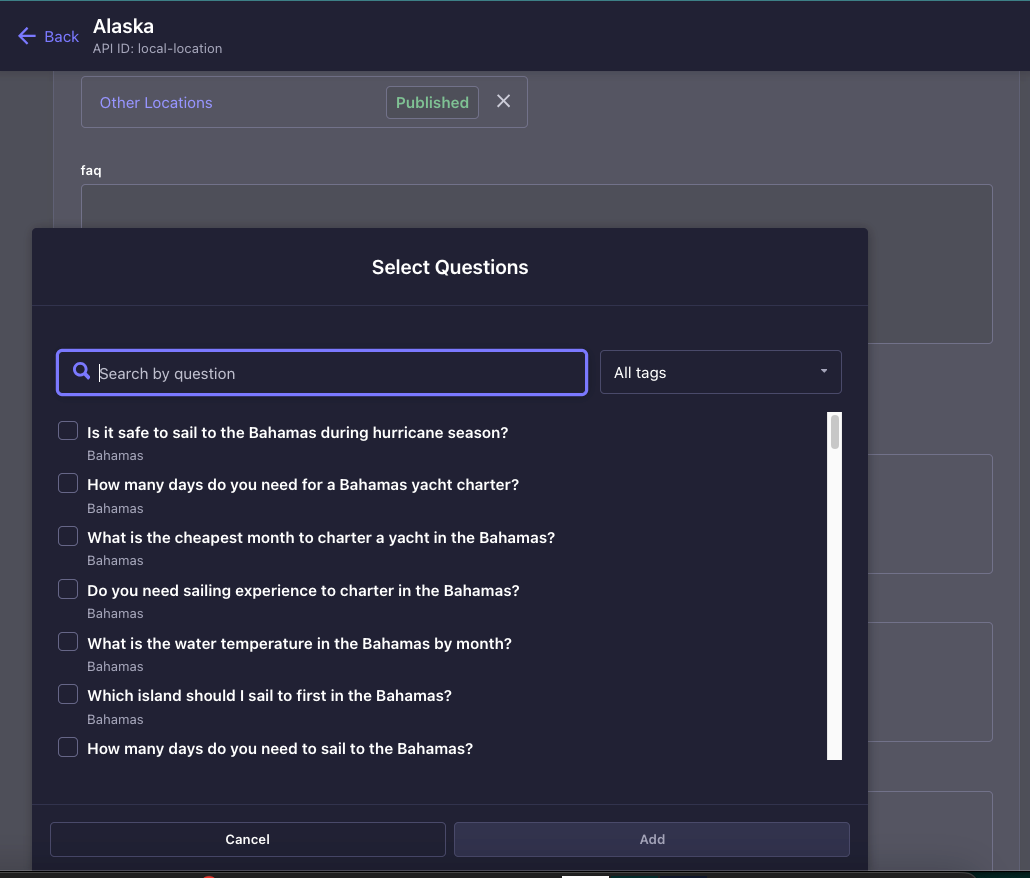
This can make it much easier for editors to find and select the right content, especially when the library contains a large number of records.
Simplify creating related content
Another useful case is simplifying relation fields.
For example, imagine a Blog has a relation to a Tag. Normally, the admin would need to leave the current page, create the Tag, return to the Blog, and then select the newly created record.
Instead, we can add a Create Tag button next to the relation field.
The button can open a small form, create the new Tag, and automatically select it in the current Blog.
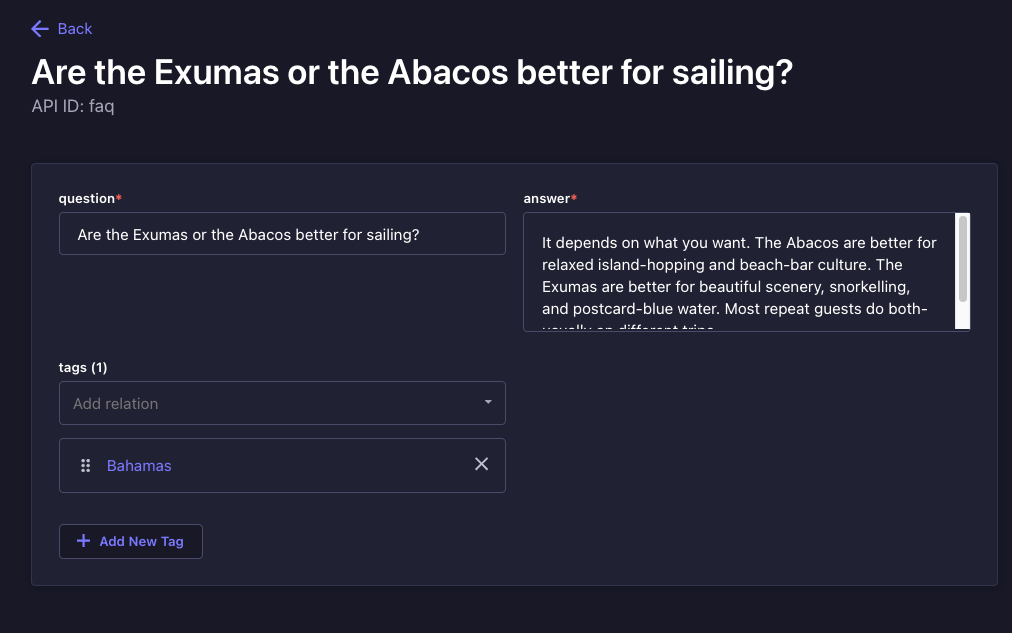
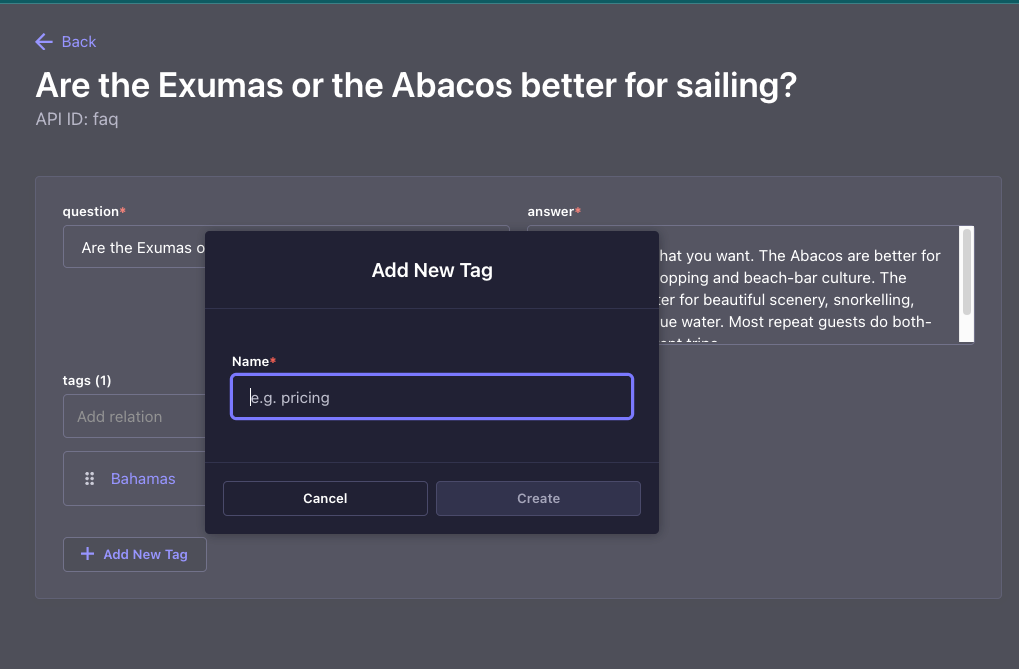
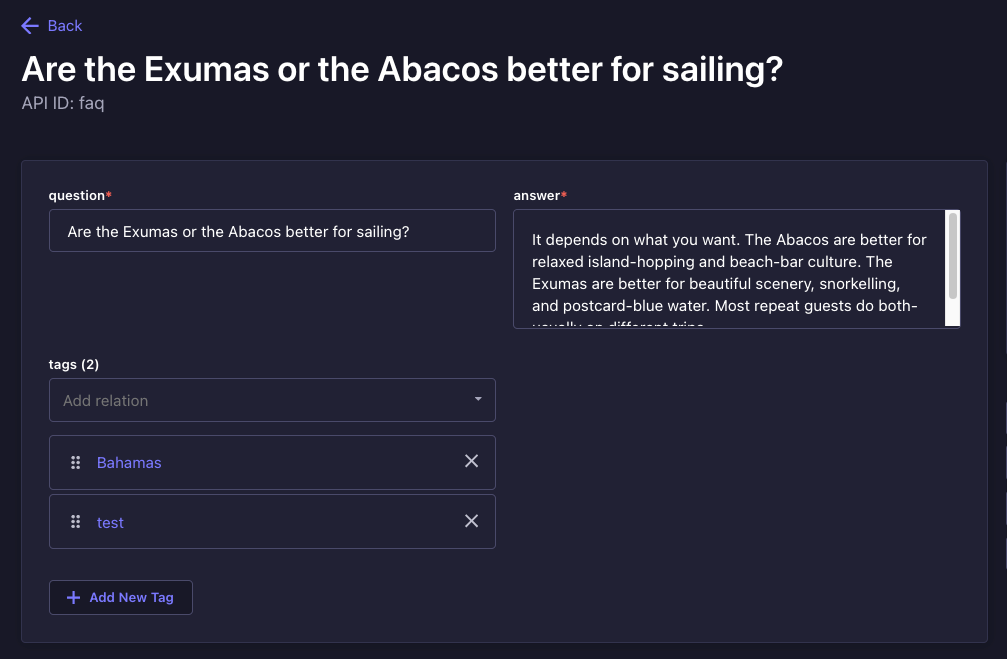
This can make workflows involving related content much faster, especially when admins frequently create related records while working on another piece of content.
Select resources from an external system
Custom fields can also be used when the data you need to select comes from an external system.
For example, instead of asking an admin to manually enter an external customer ID:
you can create a custom field that allows them to search the external system and select the customer directly.
The field can handle the search and display useful information about each result, while storing the identifier required by your application.
This approach can be useful for selecting customers, products, orders, locations, or any other resource managed by another system.
You don't always need to build custom fields from scratch. There are already useful custom fields available through the Strapi Marketplace, such as color pickers, multi-select inputs, and other specialized field types.
Before building your own field, it's worth checking the available plugins to see if there is already one that fits your needs.
How
Though the recommended way to add a custom field is through creating a plugin, app-specific custom fields can also be registered within the global register function found in src/index and src/admin/app files.
create file that handle custom field registration on the server and admin panel
const pluginId = "pluginName";
const name = "field_name";
const type = "integer";

const serverRegister = () => {
  strapi.customFields.register({
    name,
    plugin: pluginId,
    type,
    inputSize: {
      // optional
      default: 12,
      isResizable: true,
    },
  });
};

const adminRegister = (app) => {
  app.customFields.register({
    name,
    pluginId,
    type,
    intlLabel: {
      id: name,
      defaultMessage: name,
    },
    intlDescription: {
      id: name,
      defaultMessage: name,
    },
    components: {
      Input: async () =>
        import(
          /* webpackChunkName: "input-component" */ "../admin/src/components/YourComponet"
        ),
    },
    options: {
      // declare options here
    },
  });
};
module.exports = {
  serverRegister,
  adminRegister,
};
then use it in admin register code src/plugins/[pluginName]/admin/src/index.js
// import the file that handle custom field register
register(app) {
  field.adminRegister(app);
}
and on the server src/plugins/[pluginName]/server/register.js
// import the file that handle custom field register

module.exports = ({ strapi }) => {
  field.serverRegister();
};
for more details: https://docs.strapi.io/cms/features/custom-fields
Injection zones / Custom UI components
Injection zones allow plugins to inject custom React components into predefined areas of the Strapi Admin Panel. This lets you extend existing Strapi interfaces without modifying Strapi's core code.
Use cases
Add contextual information
You can use an injection zone to display additional information related to the content the admin is currently editing.
For example, on an Order page, you could display:
- Information retrieved from an external system
- Payment status
- Delivery status
- Customer information
- Recent activity
This allows admins to see important information without leaving the Strapi page.
Add custom panels
You can add a custom panel to the Edit View to provide additional tools or information.
For example, a product page could have a panel showing:
- Inventory information
- Sales statistics
- Related products
- External system status
This can be particularly useful when Strapi is only one part of a larger system and admins need information from other services while editing content.
How
To inject a component into a Content Manager injection zone, use getPlugin('content-manager').injectComponent() in the bootstrap lifecycle:
// Inject a component into the List view's actions zone
app
  .getPlugin('content-manager')
  .injectComponent('listView', 'actions', {
    name: 'my-plugin-list-action',
    Component: () => <button>Custom List Action</button>,
  });

// Inject a component into the Preview view's actions zone
app
  .getPlugin('content-manager')
  .injectComponent('preview', 'actions', {
    name: 'my-plugin-preview-action',
    Component: PreviewAction,
  });
for more details: https://docs.strapi.io/cms/plugins-development/admin-injection-zones#injection-zones-vs-content-manager-apis
Theme & branding
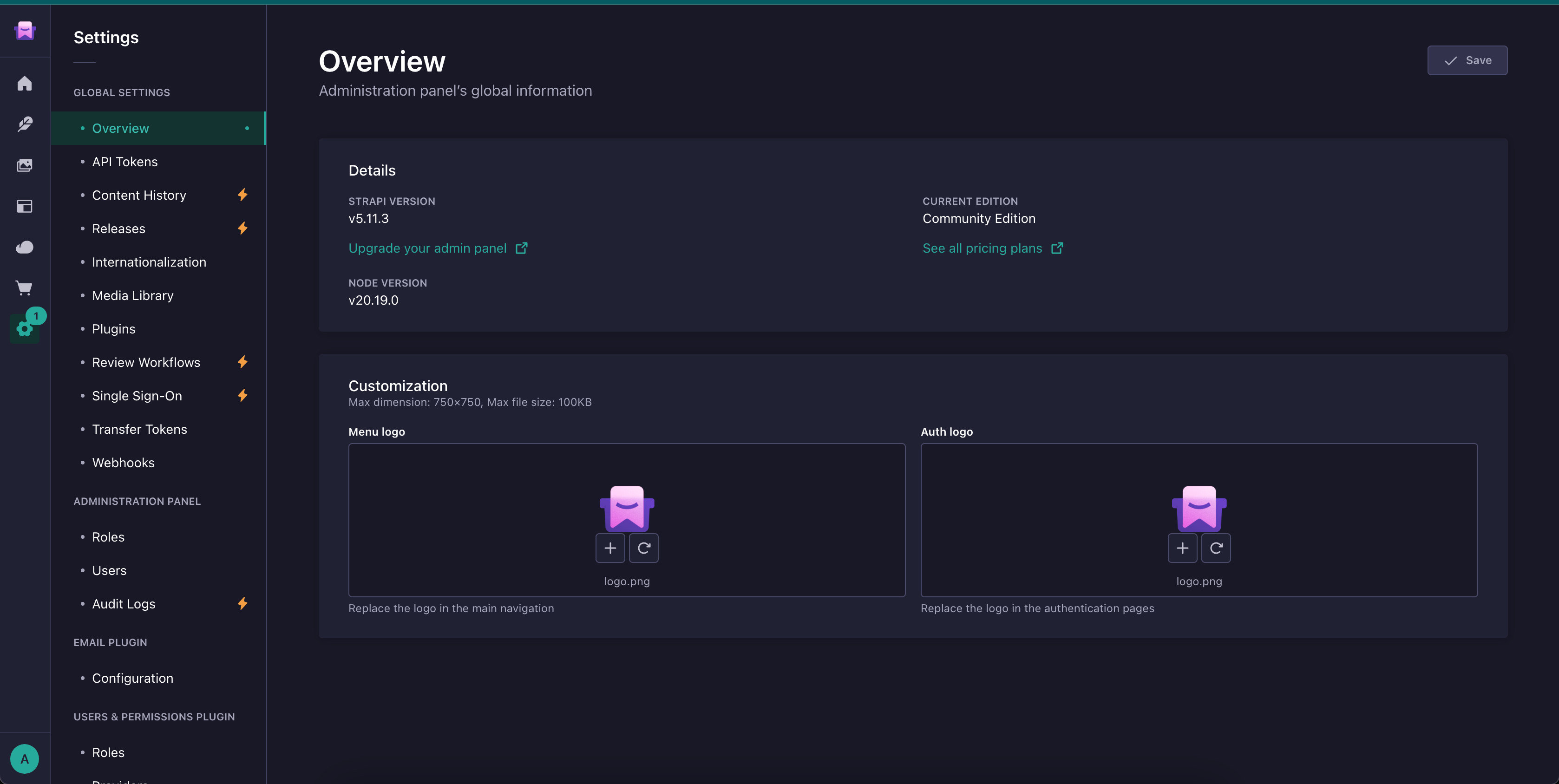
Strapi's Admin Panel can be customized to match your application's branding and visual identity. You can replace the default Strapi logos and favicon, customize the colors and theme, and extend translations and locales.
Use cases
Match your brand
The simplest use case is replacing Strapi's branding with your own:
- Login logo
- Main navigation logo
- Favicon
- Primary colors
- Light and dark themes
For example, if you're building a CMS for a client, you can make the Admin Panel use the client's logo and brand colors.
How
Most basic Admin Panel customizations can be configured in src/admin/app, while assets such as custom logos and favicons can be placed in src/admin/extensions.
Strapi provides configuration options for logos, favicon, locales, translations, themes, tutorials, and notifications.
gogoshop-strapi/src/admin/app.tsx
import type { StrapiApp } from "@strapi/strapi/admin"

export default {
  config: {
    theme: {
      light: {
        colors: {
          primary100: "#E6F7F5",
          primary200: "#B3E5DF",
          primary500: "#1F9488",
          primary600: "#178278",
          primary700: "#126B63",

          buttonPrimary500: "#1F9488",
        },
      },

      dark: {
        colors: {
          primary100: "#123330",
          primary200: "#174A45",
          primary500: "#1F9488",
          primary600: "#26A99B",
          primary700: "#38BDB0",

          buttonPrimary500: "#1F9488",
        },
      },
    },
  },
  bootstrap(app: StrapiApp) {

  },
}
for more details: https://docs.strapi.io/cms/admin-panel-customization#available-customizations
Conclusion
Strapi's Admin Panel is highly customizable. With the right extensions, you can simplify workflows, add useful functionality, and make the Admin Panel feel like a natural part of your own product.